Setting up WhatsApp alerts
WhatsApp alerts are available on the Pro plan. Once set up, you will receive a WhatsApp message the moment your site goes down and another when it recovers.
Step 1: Go to Account settings
In your WebsitePulse.io dashboard, open Account settings from the left sidebar. Scroll down to the WhatsApp alerts section.
Step 2: Enter your number and request a code
Enter your mobile number including the country code, for example +447700900123 for a UK number or +12125550123 for a US number. Then click Send code.
You will receive a 6-digit verification code on your phone.
Step 3: Enter the code to confirm
Type the 6-digit code into the verification field and click Verify. Once confirmed, your number will be saved and ready to receive alerts.
Step 4: Choose which monitors send WhatsApp alerts
WhatsApp alerts are enabled per monitor. Open the settings for any monitor (click the cog icon) and turn on WhatsApp alerts in the monitor settings panel.
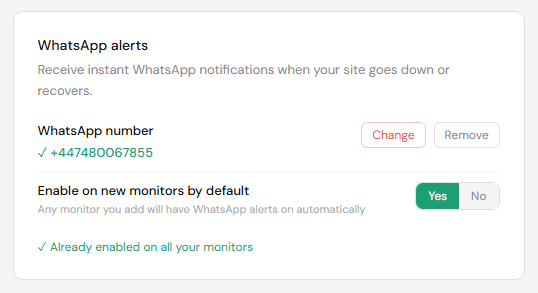
Once your number is verified, two additional options appear in the WhatsApp alerts section of Account settings:
Enable on new monitors by default
When set to Yes, any monitor you add in the future will automatically have WhatsApp alerts turned on. Existing monitors are not affected; this only applies to monitors added after you switch it on.
Enable for all existing monitors
This button appears when at least one of your current monitors does not have WhatsApp alerts turned on. Clicking it will enable WhatsApp alerts on every monitor that does not already have it, all in one go. You will be asked to confirm before anything changes.
If all your monitors already have WhatsApp alerts enabled, this button is replaced with a confirmation message so you know there is nothing left to do.