Adding multiple monitors at once
If you have a list of sites to monitor, you can add them all in one go using bulk upload. Paste directly from a spreadsheet or type URLs one per line.
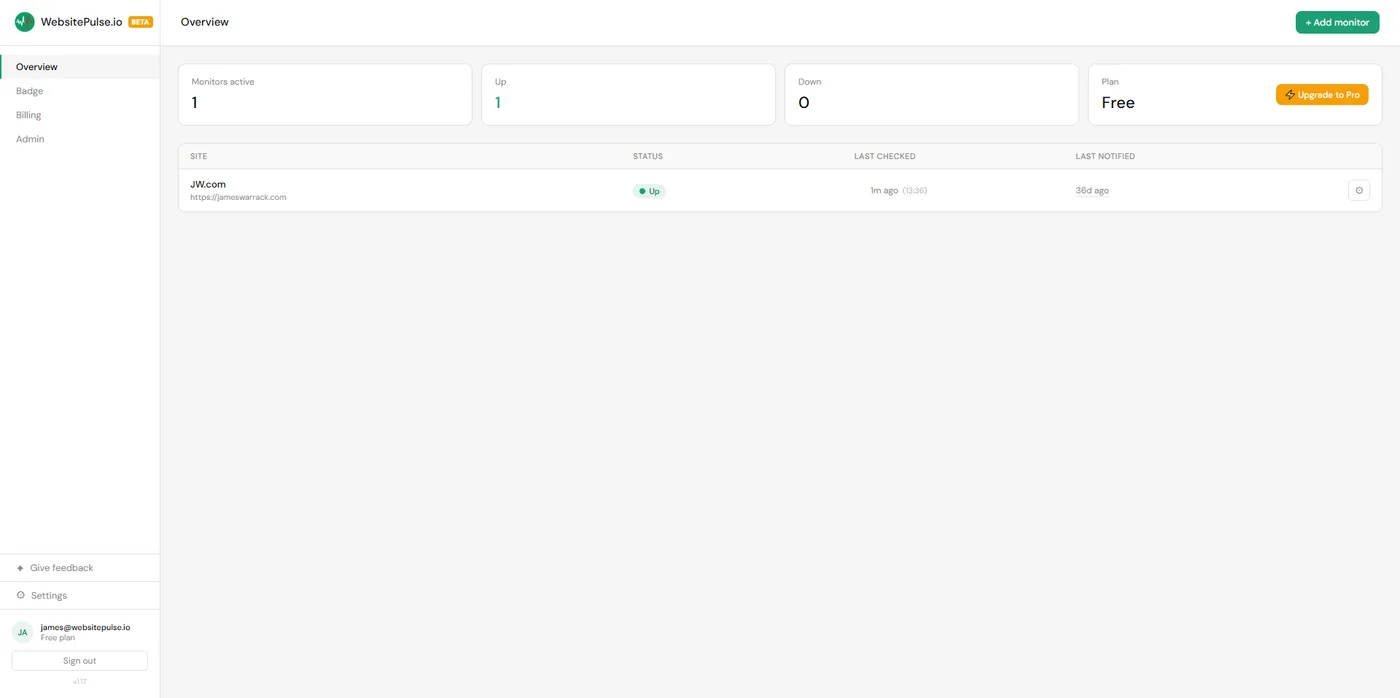
Step 1: Open the Add monitor dialog
From your dashboard, click the green "+ Add monitor" button in the top right corner.
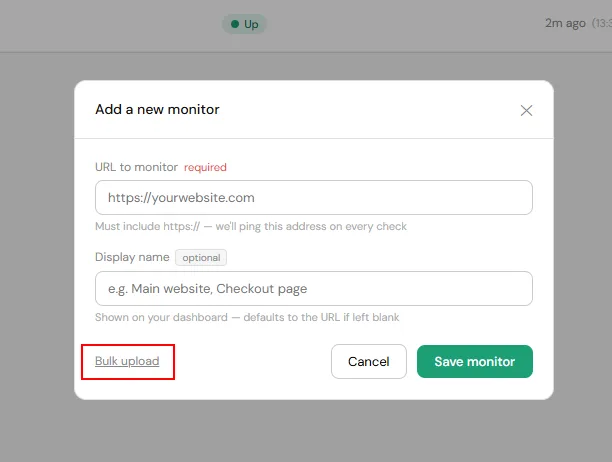
Step 2: Click "Bulk upload"
In the bottom left of the dialog, you will see a "Bulk upload" link. Click it to switch to the bulk upload view.
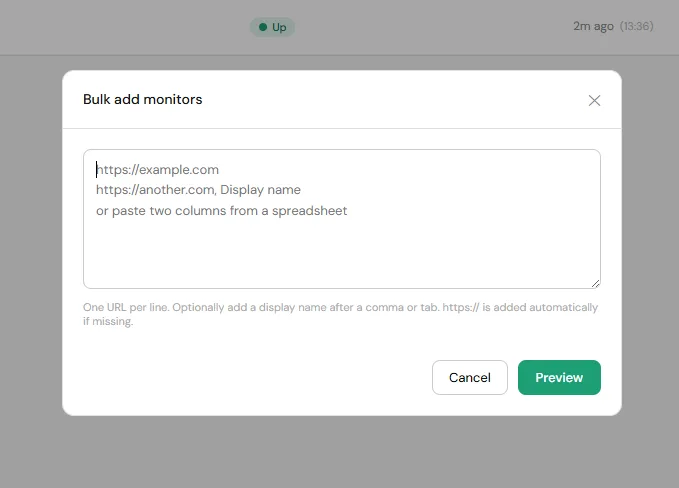
Step 3: Paste or type your URLs
Enter one URL per line. You can also include an optional display name for each monitor by adding a comma after the URL:
- URL only:
https://example.com - URL with name:
https://example.com, My website
You do not need to type https://. It is added automatically if missing.
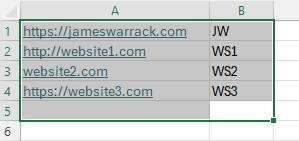
Step 4: Preview the list
Click "Preview". WebsitePulse.io will validate every entry and show a table with a status for each one:
- Will be added: valid URL that will be created as a new monitor.
- Already monitoring: you already have a monitor for this URL, so it will be skipped.
- Invalid URL: the entry could not be recognised as a valid web address.
- Duplicate: the same URL appears more than once in your list.
- Over plan limit: you have reached your monitor limit. Upgrade your plan or add a monitor pack to add more.
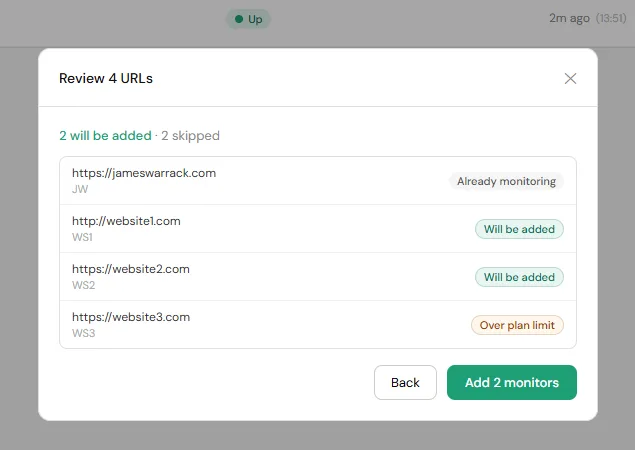
Step 5: Confirm and add
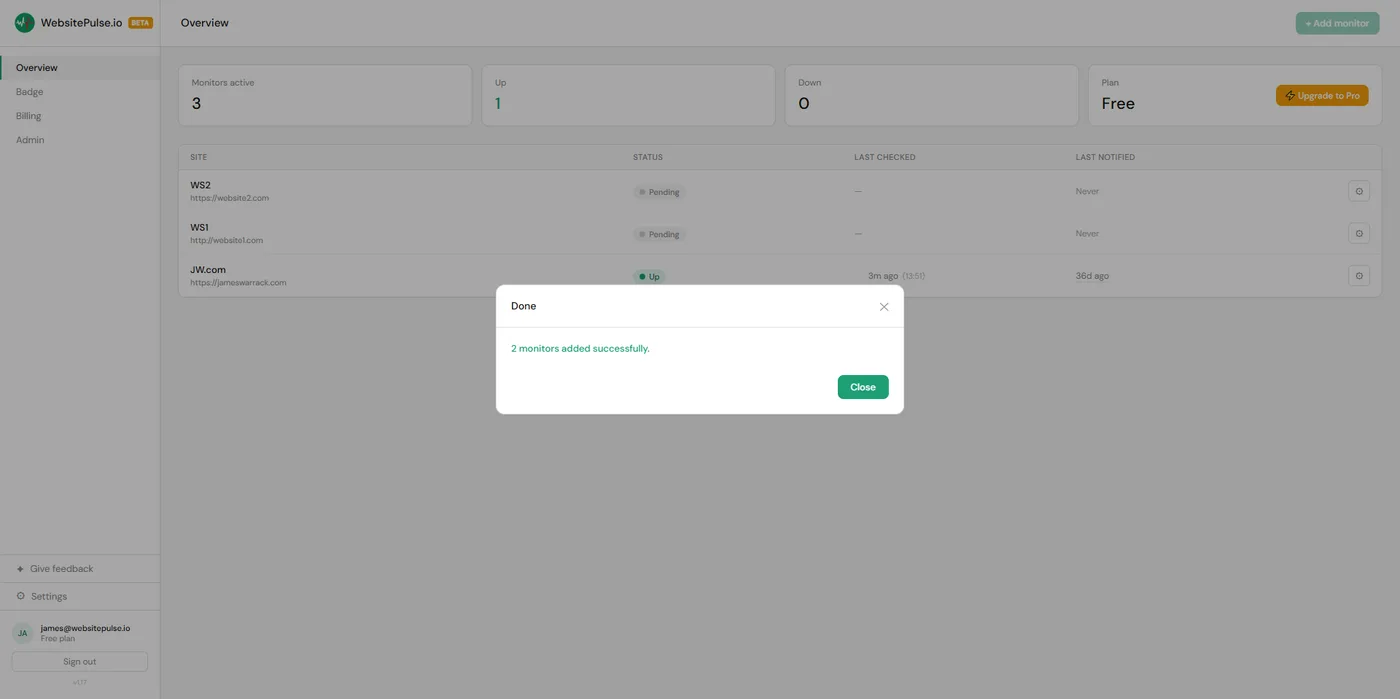
If you are happy with the preview, click "Add X monitors". The monitors are created one by one and a counter shows progress. When complete, you will see a summary of how many were added successfully.